Sister Other Paranoia Controls
What the classic VN interface asks you to do—and what is still unpublished.
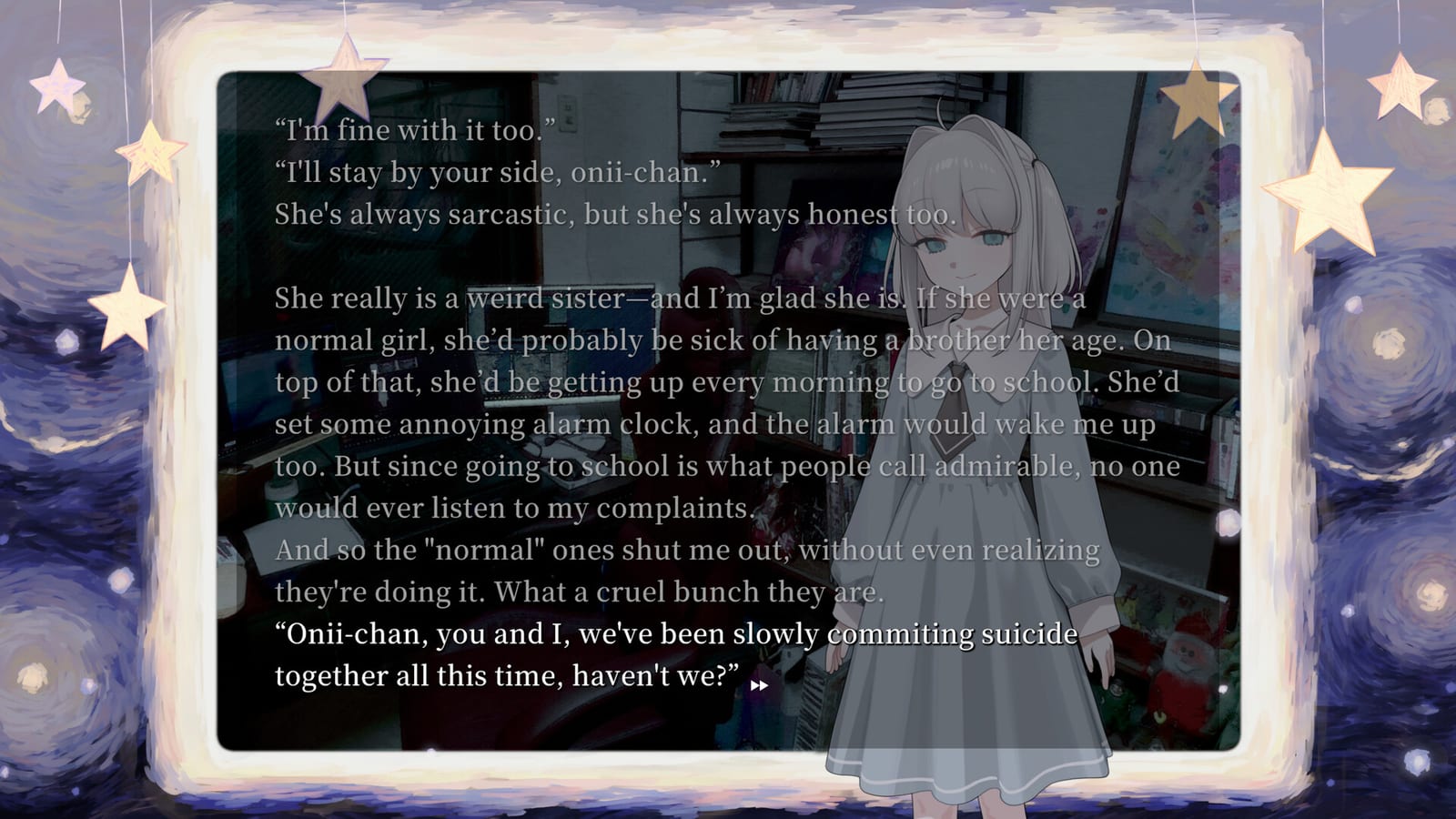
Controls philosophy: fewer verbs, denser text
Sister Other Paranoia advertises an old-school visual novel interface. That is a design choice, not a missing feature list. When developers say the game is “read, click, and vibe,” they are telling you the control scheme is intentionally small so your attention stays on writing, voice (where present), music, and art direction.
This page collects confirmed interaction notes from official materials, then explains practical habits that matter on PC. It will grow after launch when a manual, options menu screenshots, or patch notes publish full keybinds. Until then, treat anything beyond the public click / right-click model as provisional.
For the broader loop, start with How to Play. For systems flavor, see Mind Reading. For save discipline, see Choices. Return to the Gameplay Hub anytime you need the category map.
Confirmed interactions
Advance text
The primary action is advancing dialogue and narration. Official copy centers on clicking to move forward. On a typical PC visual novel, that maps to left mouse button and often overlaps with a keyboard advance key once the build ships. We will document exact keys when they are public.
What matters now is pacing. Because text is full-screen, each advance is a reading commitment. If you click as fast as a rhythm game, you will miss the point of the presentation. Train yourself to finish the line—and the feeling under the line—before you click again.
Hide text / clear the UI
Serenity Forge and Steam materials call out right-click to hide text so you can enjoy the art. That is unusual enough to highlight in marketing, which means the team expects you to use it. Practical uses:
- Study a CG without a dialogue box covering faces
- Screenshot clean compositions for personal archives (respect spoilers if you share)
- Pause emotionally without opening a separate menu
- Re-read the room’s visual storytelling before the next line lands
When you right-click again (or use whatever restore control the shipping build provides), text returns and you continue. Think of hide-text as a camera shutter for atmosphere.
Mind-reading moments
Controls for activating mind reading are not fully documented in public store text. What is documented is the fantasy: when friction piles up, you can exploit insecurities through telepathy. Until an in-game prompt gallery exists, do not assume a hotkey from fan rumors. Learn the prompts the demo or full game shows you, then come back here—we will update.
Thematic discussion belongs on Mind Reading; this page only notes that those scenes are part of the interaction vocabulary, not a separate WASD mode.
Likely PC habits (labeled as expectations)
Most classic VNs on Steam eventually include some of the following. These are genre expectations, not confirmed Sister Other Paranoia binds:
- Auto-advance / read mode for hands-free reading
- Skip or Ctrl-hold skip for rereads
- Quick save / quick load
- Title / menu access via Esc
- History / backlogue of recent lines
- Volume sliders for BGM, SE, and voices
We list them so you know what to look for in the options menu on day one—not so you memorize fake keybinds. If a feature is absent, that is still compatible with the “classic” pitch; not every VN ships every convenience.
Mouse, keyboard, and display setup
Mouse-first reading
A comfortable mouse hand matters more than DPI for this genre. Reduce click tension: rest your palm, use a light switch, and consider a lower poll-rate obsession—none of it affects story outcomes.
Keyboard comfort
If the shipping build supports keyboard advance, many readers prefer spacebar or enter for long sessions. Remapping guidance will appear here after confirmation.
Display
Full-screen text wants a sharp panel and sane brightness. Avoid crushing blacks if you care about Ohisashiburi’s art. Windowed mode helps if you are taking notes or keeping Getting Started open beside the game.
Audio
Music is part of the control of your attention. Keep system enhancements from drowning quiet scenes. Headphones make denpa unease hit harder—use that knowledge responsibly.
Accessibility and comfort controls
Pre-release pages do not publish a full accessibility matrix. Advocates should still plan ahead:
- Reading fatigue: schedule breaks; full-screen novels are marathon media
- Photosensitivity / motion: wait for options; we have not seen a detailed motion-effects disclosure
- Color / UI scale: unknown until shipping menus are public
- Content toggles: do not assume a “turn off blood” switch exists unless patch notes say so—rely on personal readiness and the demo instead
If accessibility features ship, this page will prioritize them above trivia keybinds.
Streaming, capture, and the hide-text button
Because the developers explicitly allow streaming the full game, controls knowledge doubles as production advice:
- Bind your capture software separately from advance keys.
- Use hide-text when you want a clean art beat on stream.
- Add warning overlays before mind-reading or self-harm adjacent scenes—platform ToS still applies even when the publisher is permissive.
- Keep chat tools on a second monitor so a misclick does not skip a critical line.
Pair this with the Trailer Breakdown if you need non-spoiler B-roll while explaining UI to viewers.
System requirements versus control feel
Steam’s minimum specs (Windows 10 64-bit class CPU, 6 GB RAM, DirectX 11 GPU, about 3 GB storage) imply the bottleneck is rarely framerate. Stutter from overlays, browsers, or RGB software will annoy you more than lacking ray tracing. Close clutter if clicks feel delayed. Recommended specs look more like a general Serenity Forge template than a VN necessity—trust your machine if it already runs other novels smoothly.
macOS support has been reported in coverage alongside Windows. If you play on Mac at launch, verify input quirks (trackpad right-click equivalents, fullscreen shortcuts) against the shipping readme. We will note platform-specific oddities when players confirm them.
Troubleshooting mindset before day-one patches
If text does not advance:
- Click the text area, not a desktop dead zone
- Check whether a menu or language prompt is open
- Confirm the window is focused
If you cannot hide text:
- Try right-click on the novel viewport specifically
- Check whether a tutorial tooltip is consuming input
- Look for an on-screen hint in the demo build
If the game feels “unresponsive,” you may be waiting on a timed animation or voice line. Patience is part of the control scheme.
How controls connect to choices
A small verb set does not mean choices are meaningless. It means choices may appear as selectable text options rather than action gameplay. Read Choices for honest pre-release guidance on saving and expectation management. Mind-reading decisions, if presented as prompts, deserve the same deliberate click you give ordinary dialogue—maybe more.
Update promise
After August 2026 launch (Steam’s planned window around August 14), this page should gain:
- A full keyboard/mouse table
- Controller support notes if any
- Options menu screenshots
- Demo-versus-full-game control deltas
Until then, master the two confirmed verbs—advance and hide text—and let the story do the rest. For purchase timing and storefront steps, see How to Buy. For category context, return to the Gameplay Hub.
Frequently Asked Questions
Quick answers to the most common questions.
What controls are officially confirmed?
Official materials highlight clicking to advance and right-clicking to hide text so you can view the art. Full keybind charts are not published yet.
Is there a controller guide?
Not yet. This page will add controller support details if the shipping build documents them.
Why does hide-text matter?
Sister Other Paranoia markets full-screen reading and strong art direction. Clearing the UI lets you sit with CGs and scene composition without a dialogue box in the way.
Where do I learn the overall play loop?
See How to Play and the Gameplay Hub.